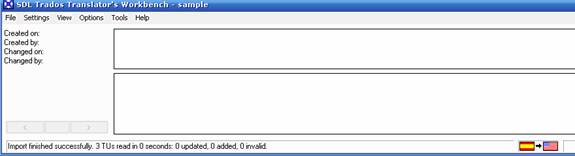
When delivering projects to larger translation agencies or clients who use the Trados CAT tool, learning how to export and import translation memories is fundamental for smooth deliveries. Instead of delivering the five files that generate the translation memory (TM), which usually implies a large file size, you can simply export your TM into an easy-to-use .txt file or import the .txt file into an existing translation memory.
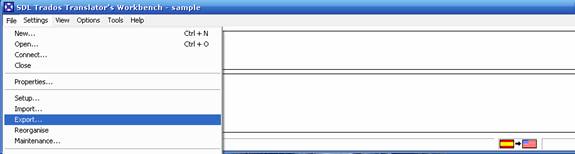
To begin, first open up your TM exclusively. (This means that you are the only one that can have access to it and modify it when you open it.) Next, under the File menu, click on Export.
The screen that pops up is predetermined and you do not have to do anything besides click OK.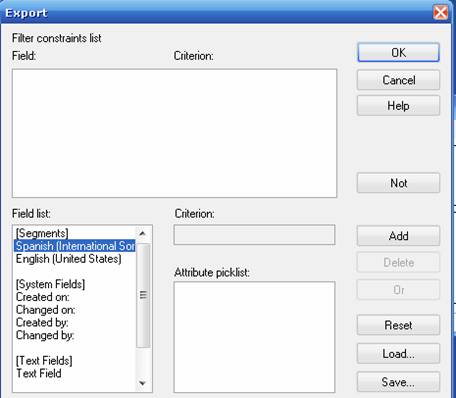
Now, the dialog box will ask you where you want to save your .txt file. It is usually best to save it in the folder designated for the TM. Or, you can also create a sub-folder called “Export” if you are working with both imported and exported memories.
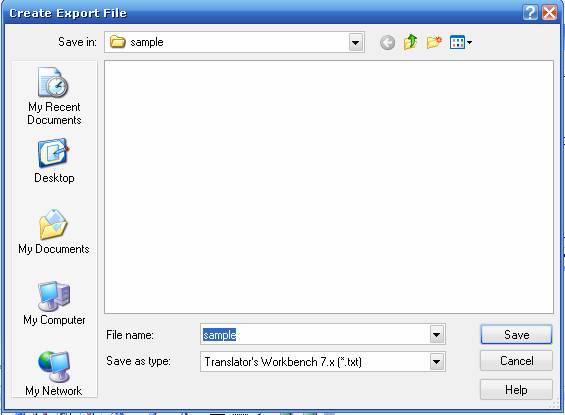
Once you click OK, the export process will run automatically. The final product is the .txt file in the folder you designated.
Be sure to check that the process ran smoothly by looking at the bottom portion of your TM window. Look for the Export finished successfully message, which will also indicate how many translation units were exported.
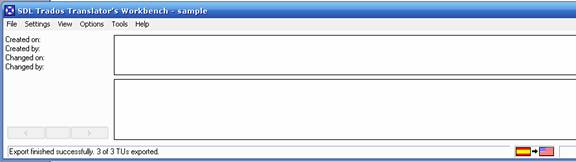
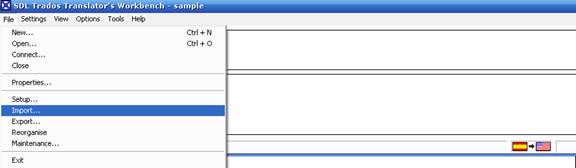
Now that you have a .txt file, you can also import it into an existing TM. Create your TM first (or open an existing one), then go to File and Import.
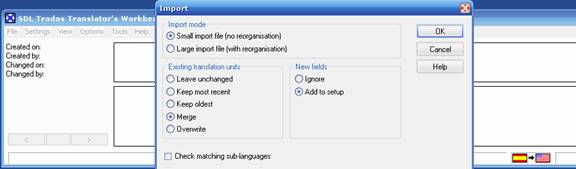
Again, the window that appears is predetermined and many times no modification of the settings is required. However, you can change the Existing translation units settings so that the segments are merged, overwritten, etc.
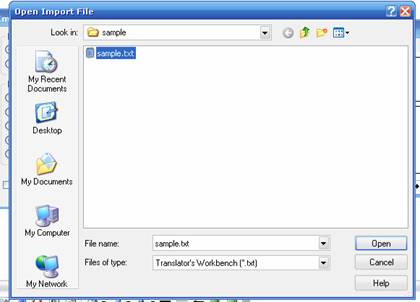
Next you will need to select the .txt file you are going to import and click OK.
The import process is now finalized and the segments from the .txt file will appear in your Translation Memory. As with the export step, if the import was successful the following message will appear: Import finished successfully.